Build a pipeline
Connect source data, build and preview a draft, then start a pipeline in the web application
Use the web application to turn source tables into a maintained result. Start with a root table, add related records or transforms, and choose where to write the result.
For a prepared example, try the Quickstart first. For file-based authoring and automation, use Apply and run a pipeline.
Screenshots show an example using sample orders and shipments.
Before you begin
- Sign in to the web application at
http://localhost:8080(or your server URL) asadmin. If you used the Quickstart, find the password intapstate-demo/.env. - Prepare your databases using the relevant connector guides, including network access, permissions, and CDC prerequisites.
- Have an administrator register the required connectors.
- Configure a writable destination, such as MongoDB, using an available target connection.
Use sample or non-sensitive data while evaluating the preview release.
1. Connect and discover your data
In Data Sources, create a source, choose its connector, and enter its connection settings. Run Test connection and resolve any failed checks. Save the source, then run Refresh schema.
Open a table and review its columns and primary key. The builder uses discovered fields to configure relationships and transforms. If you change the database schema, refresh it before editing the pipeline.
Add the destination in Data Sources too if it is not already available.
For CDC, a passing connection test does not replace the database's logging and permission setup. Follow the source's connector guide.
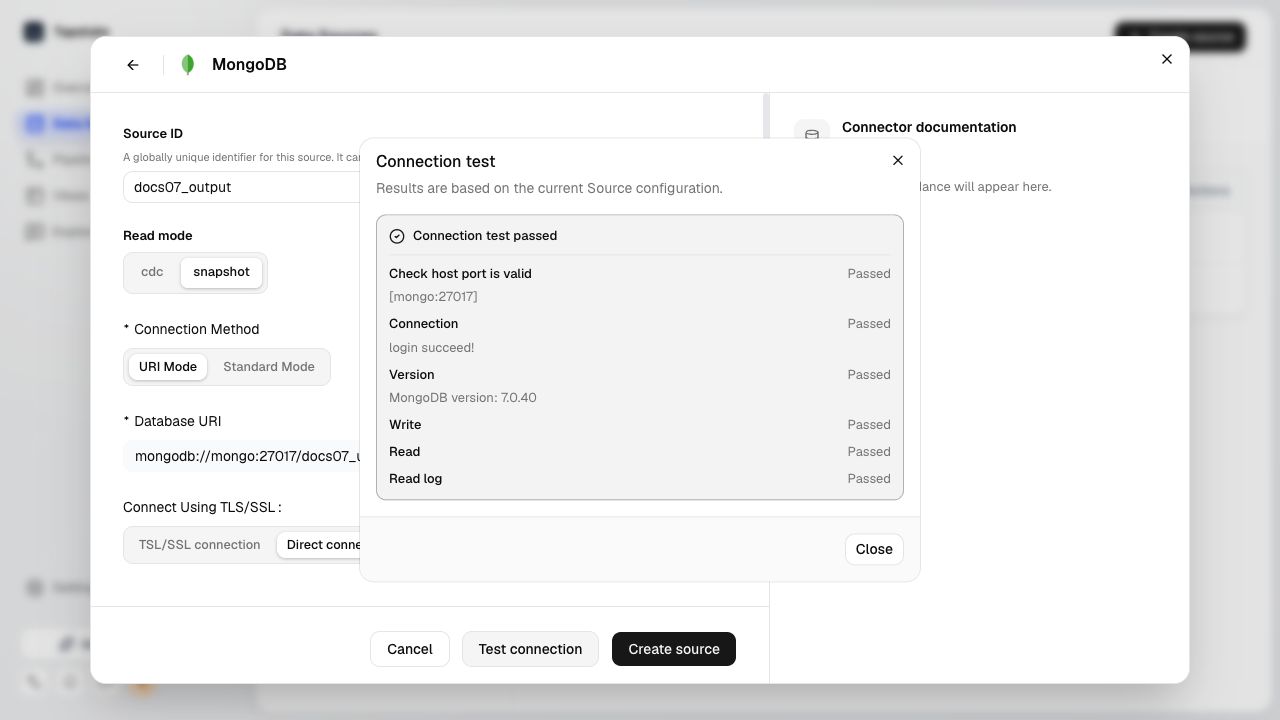
A successful connection test for the sample MongoDB destination.
2. Create a draft
In Pipelines, create a pipeline and choose Pipeline builder. Give it a
stable ID, such as order_state; the ID cannot be renamed later.
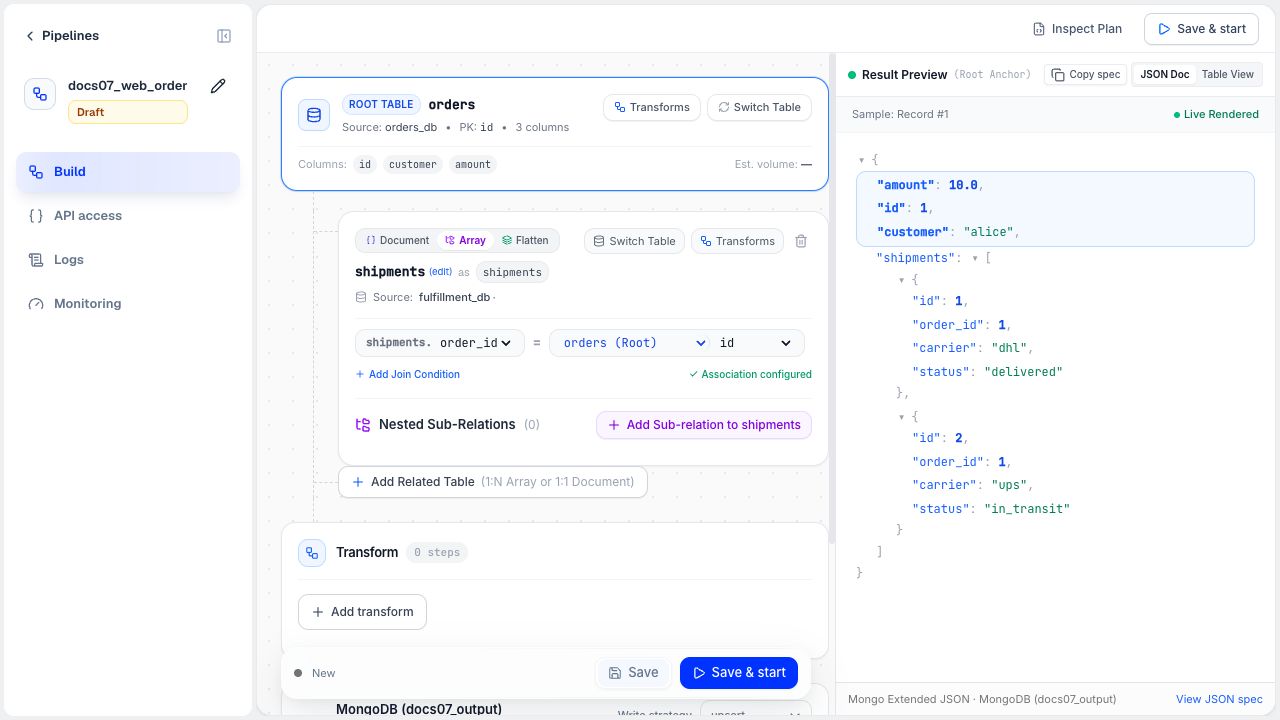
- Choose the root source and table. Each root row becomes one result document.
- Add related tables when the document needs data from other records. Select row keys and matching fields, then choose whether to flatten fields or embed a document or array. See Assemble documents with nest.
- Add filters, field mappings, or other transforms as needed. Keep the row keys and relationship fields needed by later steps.
- Select the destination, target table or collection, and write strategy. The
default
upsertstrategy requires discovered primary keys on the selected source tables. Useappendonly for insert-only delivery when the target supports it.
Select Save before leaving. This keeps the draft without publishing or starting it; an unfinished draft can be completed later.
In this example, orders is the root table and shipments.order_id matches
orders.id. The Array relationship embeds matching rows under shipments.
3. Check the configuration and sample result
Select Inspect Plan to open DSL Preview and inspect the compiled configuration. Compilation checks the definition; it does not read source rows.
Result Preview reads a bounded source sample and runs the draft's data path without writing to the destination. Review the output fields, relationships, and values before starting a full run.
The preview has a 45-second deadline and uses at most 100 root rows. It can show Mongo Extended JSON when the selected MongoDB target's codecs are available; otherwise it shows logical JSON. This sample does not validate continuous CDC or every source record. If a preview fails, resolve the error before relying on the last displayed result.
4. Publish and start
Select Save & start. The application saves the draft, checks and compiles it, publishes the pipeline configuration, and requests a start. Resolve any diagnostic at the stage where it appears.
If the pipeline is already running, the new configuration can be published, but the application does not stop the active run automatically. Stop it deliberately and choose whether to retain its progress and state. Wait for the stop to complete before starting the new revision. See Lifecycle transitions before clearing state.
If another editor changed the draft or published configuration, reload and review those changes before retrying. Do not overwrite a conflict blindly.
5. Check the result
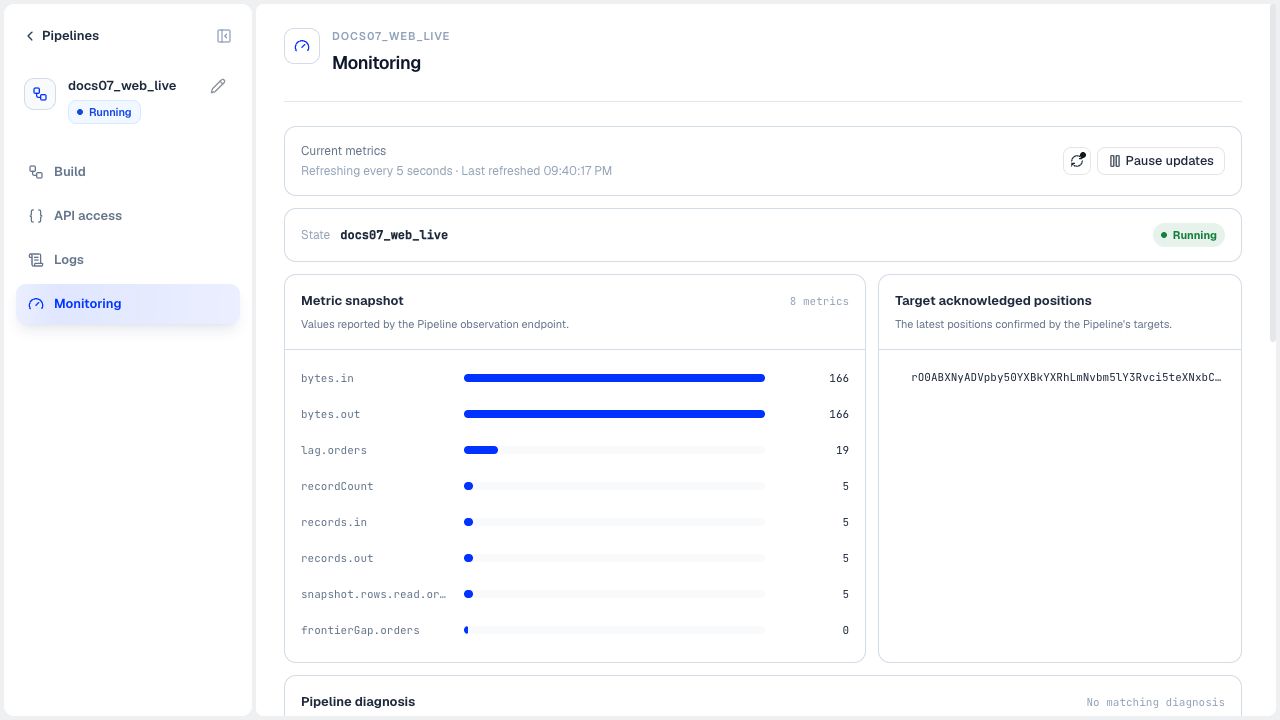
Open Monitoring and Logs to check the initial load and investigate errors. See Observe a pipeline for the status and metrics fields.
Open the output in Views and select Documents where available, or query the configured target. Check a known record, including related records and transformed fields. For a CDC pipeline, make a small insert, update, and delete in a test source and confirm the expected changes at the destination.
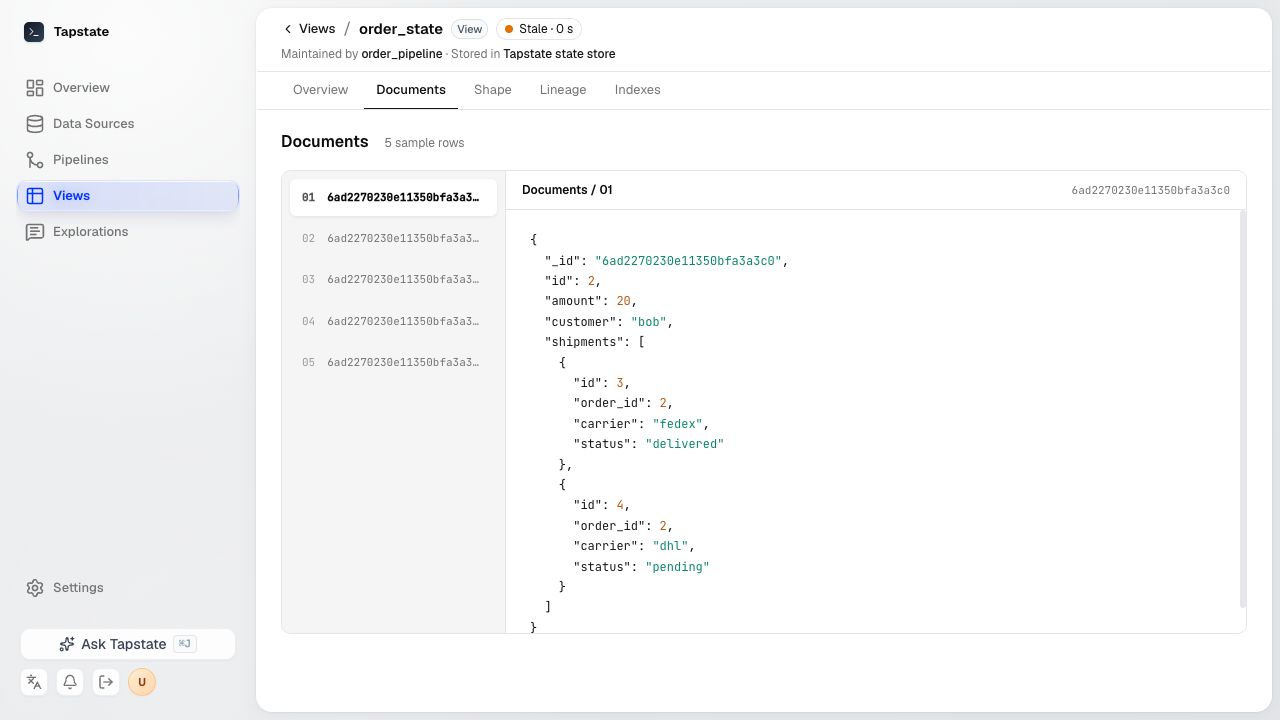
Browsing an existing result reads stored documents. Result Preview runs a sample through the draft. Use the former to check delivery and the latter to check an edit before running it.